
Student Records & Transcript Requests
Transcript Requests
Transcript requests for current students, former students and out of district resources are listed below.
What is SchooLinks?
- New state-wide tool for High School & Beyond Planning.
- Students will have life-long access and can access resume-building tools, college and career exploration, and job growth data.
- College Application Manager (CAM)
Requesting Transcripts
Download an Unofficial Transcript
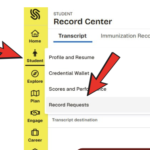
In SchooLinks: Student -> Record Requests, select “Download unofficial transcript. Note: Your browser may block you once you download, select “Open in Adobe Acrobat”. Verify it looks accurate let counselor know.
Requesting Official Transcripts:
For 12th Graders Only
Students: You MUST link your SchooLinks and Common App Accounts.
SchooLinks is the way we send transcripts to colleges. If we don’t know where you’re applying, we can’t send your transcript. If the college doesn’t get your transcript, they can’t admit you. Login to SchooLinks to link your account with Common App.
Linking SchooLinks and Common App
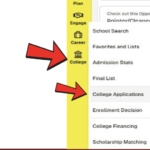
Follow the 4 Steps to link your SchooLinks and the Common App.
- Activate your SchooLinks account. Go to Clever and find SchooLinks. We also recommend that seniors log in early to get used to the college application features.
- Once you’ve done the Onboarding activity, Click “Colleges” then “College Applications” to get to the Application homepage.
- Make sure you link your CommonApp account! Click “Log In”, and you will be brought to Common App’s website to create or link your account.
- Once your accounts are linked, any colleges you’ve added in Common App will appear in SchooLinks.
Adding Colleges & Official Transcripts
- Select the Colleges tab in the navigation menu.
- Select College Applications to open your application board.
- Select the blue Add Application button in the top right corner.
- Search for and select your target college, then select Add Application.
- If not a CommonApp school, indicate that you are applying through the college’s website or add the individual colleges (if UKAS or Cal State school) .
- Select Save Application to automatically log the school and trigger the official transcript request.
SchooLinks Guide

Refer to the district handout about SchooLinks, Common App and other helpful resources.
Class of 2026 Seniors
Transcript requests through Naviance were sent in July 2025. If you need your transcript sent to a college or university that doesn’t use Naviance, you may send your request through parchment. Please reach out to Archives@seattleschools.org if you have any questions or if you do not have access to the internet. If you are having technical difficulties with the ScribOrder Online Request Tool, please reach out to: help@scribsoft.com.
Former Students and/or Employees Seeking Graduation Verification
Former students and/or Employees seeking graduation verification, if it has been more than 1 year since you’ve graduated or withdrew from Cleveland STEM HS, please contact Seattle Public Schools Student Records online or via phone 206-252-0139.
- Go to Parchment for Cleveland HS
- Processing Time: Seattle Public Schools processes requests electronically within 3-5 business days.
School Requesting Records
Seattle Public Schools is now using a web-based application to help us manage all student records requests from other schools for transferring students.
Requests received via fax, phone calls, emails and mail from other schools will no longer be accepted.
All transferring student records requests must be submitted online using the K-12 Transfer application. This application is a secure, self-service application that is easy to use:
- Site Access. Go to Scribbles K-12 Records Transfer
- Sign in to an existing account OR Create Account. If you do not already have a K-12 Transfer account, one will need to be created.
- A school email address must be used to set up the account; personal email addresses will not be accepted.
- Once an account has been created, the credentials for the account will be verified. This process takes approximately 24 hours.
- An account only needs to be verified once.
- A “Your registration has been verified” email notification will be sent when the account has been completed.
- Submit Request. Login to the K-12 Transfer application and submit the request for records.
- Processing Time. Seattle Public Schools processes request electronically within 3-5 school days.
- Download the Records. When the “processing complete” email is received, you will need to login to the K-12 Transfer application to download the student records you requested.
For more information about the student records that we provide, please see the Transferring Student Records Request page.
Please contact support@scribsoft.com if you have any issues setting up your account or submitting a record request.
College Entrance Examination Board (CEEB) Code
College Entrance Examination Board (CEEB) Code for Cleveland is: 481055, The CEEB codes are needed when you register for a SAT tests or send score reports to colleges and scholarship programs.
As of October 10, 2026